Categories
Books The writing process

Word Tip 8: Automatic Saves

Microsoft Word Tips for AuthorsWelcome to the next in a series of tips on using Microsoft Word, geared towards authors.
Most Word advice is rather complicated and full of things you’ll never need to know.
I shall do my best to keep it simple, because you’re not stupid… just busy.
Please note: 
– Not all versions of Word are the same, but most are near enough.
– There are different ways of doing the same thing. I shall demonstrate just one (or two).

I was all ready to save you from automatic saves, today, but it turns out you don’t need saving, although your document does!

Once upon a time, Word’s default was to automatically save documents regularly. This meant that if you messed up your document by, for example, replacing a word that appears within other words (see Word Tip 7), you coudn’t return to the saved version because it had been automatically saved in the meantime.

But that is no longer the case. Now, if you look at:

FileOptionsSave

you’ll see something called AutoRecover, which is probably set to jump into action every 10 minutes. This is good, I think. AutoRecover doesn’t affect your document; it saves its own version. If you close your computer without saving, if an update happens while you’re away from the computer, you will be offered the option of using the AutoRecover version.

However, as Microsoft says:

Important: AutoRecover does not replace the Save command. You must still save your document when you finish working on it.

Not just when you finish, in my opinion. Get into the habit of pressing Ctrl/S frequently. This is the best way of making sure you don’t lose a large chunk of work. And don’t forget to do backups.

Next week: about diacritic marks and apostrophes.

Links to Previous Word Tips

  • Tip 1: A Matter of Style
    About heading styles.
  • Tip 2: Make Your Novel a Trampoline
    How to jump swiftly and gracefully between chapters.
  • Tip 3: That’s Not What I Wrote
    How to stop Word making changes you don’t want.
  • Tip 4: How Not to Jump to a New Page
    Press Enter until a new page appears? Please don’t.
  • Tip 5: How Not to Indent a Line
    The space bar is not for indentation.
  • Tip 6: Track and Compare
    About Track Changes, Compare and Combine.
  • Tip 7: Replacement Operation
    Pitfalls of find and replace.
 

Categories
Books The writing process

Word Tip 7: Replacement Operation

Microsoft Word Tips for AuthorsWelcome to the next in a series of tips on using Microsoft Word, geared towards authors.
Most Word advice is rather complicated and full of things you’ll never need to know.
I shall do my best to keep it simple, because you’re not stupid… just busy.
Please note: 
– Not all versions of Word are the same, but most are near enough.
– There are different ways of doing the same thing. I shall demonstrate just one (or two).

You have a character called Jo. But there’s also a character called John. Someone tells you that’s confusing for them when reading, because the names are too similar.

“No problem,” you say. “I’ll change her name to… Cynthia. It was my great-great-grandmother’s name. I’ve always wanted a chance to use it in one of my stories.”

Then you open your Word document, click Replace, put ‘Jo’ in the Find what box, ‘Cynthia’ in the Replace with box, and click Replace All. Simple.

However, when you scroll through your document, you realise all is not well. John has become Cynthiahn and the banjo he likes to play is now a bancynthia. You think I’m joking? No, I’m Cynthiaking. But I’m also very serious.

Never perform a global replace without considering what else is going to be replaced.

The correct way to replace all instances of the name Jo is this. You see those options at the bottom of the Find and Replace window? If you don’t, click More>> and they’ll appear. Make sure Match case and Find whole words only are ticked (US: checked). That way Word will only replace the instances with a capital J and a small o, and it won’t replace any instances that are part of a longer word.

Here’s another useful tip: Before you begin any big change to your document, make a copy of the whole document. Then you’ll always have a version to return to if the operation doesn’t quite work the way you expected.

Next week: Do you need saving?

Links to Previous Word Tips

  • Tip 1: A Matter of Style
    About heading styles.
  • Tip 2: Make Your Novel a Trampoline
    How to jump swiftly and gracefully between chapters.
  • Tip 3: That’s Not What I Wrote
    How to stop Word making changes you don’t want.
  • Tip 4: How Not to Jump to a New Page
    Press Enter until a new page appears? Please don’t.
  • Tip 5: How Not to Indent a Line
    The space bar is not for indentation.
  • Tip 6: Track and Compare
    About Track Changes, Compare and Combine.
Categories
Books The writing process

Word Tip 6: Track and Compare

Microsoft Word Tips for Authors

Welcome to the next in a series of tips on using Microsoft Word, geared towards authors.
Most Word advice is rather complicated and full of things you’ll never need to know.
I shall do my best to keep it simple, because you’re not stupid… just busy.
Please note: 
– Not all versions of Word are the same, but most are near enough.
– There are different ways of doing the same thing. I shall demonstrate just one (or two).

When you work with an editor, any changes you make to the document you’re working on must be seen by both of you. The usual way to do this is to use the feature called Track Changes.

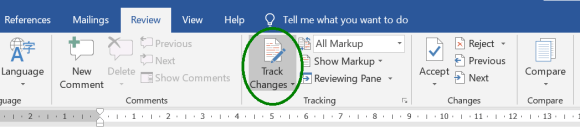
Before you start, turn on Track Changes, which you’ll find in the Review tab. When it’s turned on, the rectangle is highlighted in grey.

Word Track Changes Feature

Then everything you type or delete shows up as a change, with different colours to indicate the different people working on the document. You can also select a portion of text and click New Comment to add a comment about that text.

When working on a document that has been edited by someone else, you should step through the changes by clicking Next in the Changes box. This will show you the text changes as well as the comments. If you click Next in the Comments box, you will see the comments only and not the text changes.

For each change you jump to, you’ll probably want to either accept it or reject it, either by using the options in the Changes box or by right clicking and choosing Accept or Reject. If you reject the change, you might want to add a comment (explained above) to let the editor know why you’ve rejected it. It’s probably better to leave the change in place and just add a comment.

What if someone has changed a document without using Track Changes? That’s what Compare is for. And along with Compare, if you click the litle arrow, is a function called Combine, which is useful when two or more people are working on a document at the same time.

If you have any questions about Track Changes, Compare, Combine or any of the features mentioned in this series of posts, please ask.

Next week, think before you replace.

Links to Previous Word Tips

  • Tip 1: A Matter of Style
    About heading styles.
  • Tip 2: Make Your Novel a Trampoline
    How to jump swiftly and gracefully between chapters.
  • Tip 3: That’s Not What I Wrote
    How to stop Word making changes you don’t want.
  • Tip 4: How Not to Jump to a New Page
    Press Enter until a new page appears? Please don’t.
  • Tip 5: How Not to Indent a Line
    The space bar is not for indentation.


Categories
Books The writing process

I’m a Naughty Girl

I'm a Naughty Girl

It’s time to admit it. I broke three rules. Yes, three rules of writing, possibly more. And all in one book: Cultivating a Fuji, out tomorrow. Here are the rules:

  • Minor characters don’t have backstories.
  • Always begin with something exciting that draws the reader in.
  • No head-hopping.

BUT rules can be broken, as long as the writer understands the rules and breaks them knowingly. What do I mean?

Minor characters don’t have backstories

In this story, it was important to me for readers to understand these characters. I didn’t want readers to view them simply as villains who mistreat Martin. They are all people with lives of their own. Like most of us, their minds are mostly occupied by their own problems. When they encounter Martin, we need to remember that they don’t have the emotional space to handle such an alien character. And sometimes, something in a minor character’s life causes them to act in a positive way.

Fortunately, the first two reviewers liked the fact that minor characters are developed.

Always begin with something exciting that draws the reader in

This simply didn’t work. When I tried rearranging scenes to accomplish this, I found myself breaking a different rule: The main character’s point of view should come first. I think the story begins in an interesting way, but it’s not exciting because it’s reflective. Martin begins by looking back on his life.

No head-hopping

This is an important rule. When a writer doesn’t understand this rule, changes in point of view can be frustrating for a reader. But if done properly, it can work well. Virginia Woolf accomplished this in To the Lighthouse. In Cultivating a Fuji, there is one chapter in which two people meet, and it’s important to know what each of them is thinking. I think I got it right.

There. I’ve admitted to my misdemeanours. I hope you agree they were in a good cause!

Cultivating a Fuji - Front Cover~~~~~~~~~~~~~~~~~~~~~~~~~~~~~~~~~~~

CULTIVATING A FUJI is released tomorrow, Wednesday, 15th May, but there’s no need to wait. This is what you can do now:

Categories
Books The writing process

Word Tip 5: How Not to Indent a Line

Microsoft Word Tips for Authors

Welcome to the next in a series of tips on using Microsoft Word, geared towards authors.
Most Word advice is rather complicated and full of things you’ll never need to know.
I shall do my best to keep it simple, because you’re not stupid… just busy.
Please note: 
– Not all versions of Word are the same, but most are near enough.
– There are different ways of doing the same thing. I shall demonstrate just one (or two).

Your next line is the start of a new paragraph and you’ve decided you want the first line of the paragraph to begin further in from the margin… indented. So you press the space bar a few times and the paragraph’s first line is indeed indented.

Shocked

No! That would have been fine on a typewriter. But nowadays we use fonts that have proportional spacing. We might change fonts in a document. The space taken up by six spaces at the beginning of one line might not be the same as the space taken up by six spaces at the beginning of a different line. You’ll struggle and fail to line up your indentations. Your document will look messy.

A better method is to press the Tab button. That will jump to the same place every time, providing that all tabs are defined the same way for all your paragraphs.

An even better method is to modify the style, which, unless you’ve changed it, is called the Normal style. Here’s how:

  1. With the cursor on a paragraph, click the little arrow in the bottom right corner of Home → Styles.
  2. Hover over Normal in the Styles box and click the arrow that appears.
  3. Click Modify.
  4. Click Format → Paragraph.
  5. Click Indents and Spacing
  6. Click the arrow under Special: and choose First line.
  7. Under By:, set the amount of space you want to leave on the first line of each paragraph. (Mine is set to 1.27 cm.)
  8. Click OK twice.

Every Normal paragraph will have its first line indented by the amount you defined.

Next week we’ll look at Track Changes and Compare.

Questions and suggestions for future topics are welcome in the comments below.

Links to Previous Word Tips

  • Tip 1: A Matter of Style
    About heading styles.
  • Tip 2: Make Your Novel a Trampoline
    How to jump swiftly and gracefully between chapters.
  • Tip 3: That’s Not What I Wrote
    How to stop Word making changes you don’t want.
  • Tip 4: How Not to Jump to a New Page
    Press Enter until a new page appears? Please don’t.
Categories
Books The writing process

Word Tip 4: How Not to Jump to a New Page

Microsoft Word Tips for Authors

Welcome to the next in a series of tips on using Microsoft Word, geared towards authors.
Most Word advice is rather complicated and full of things you’ll never need to know.
I shall do my best to keep it simple, because you’re not stupid… just busy.
Please note: 
– Not all versions of Word are the same, but most are near enough.
– There are different ways of doing the same thing. I shall demonstrate just one (or two).

You’ve reached the end of a Chapter 1. You want Chapter 2 to begin on a new page. So you keep pressing Enter until, lo and behold, “Chapter 2” is on the next page.

Shocked

No! Don’t do it! Here’s why:

Every time a change is made in Chapter 1 that affects the number of lines in the chapter, Chapter 2 will no longer appear at the top of the next page. If you’ve done this for every chapter in the novel, you’ll have to go through the document correcting the number of Enters before each new chapter.

What should you do instead? I’m going to mention two methods.

Method 1

Word Show-Hide Button
Show/Hide button

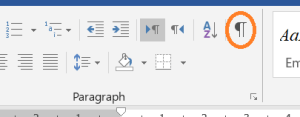
Choose Insert and then Page Break (or just press Ctrl/Enter). This jumps to the next page, solving the problem. But you can’t see the page break unless you press the Show/Hide button on the Home tab. This means you (or someone else) might inadvertently add something before the page break that should go after, or vice versa. This is why I prefer…


Method 2

Remember the styles I mentioned in Tip #1? If you defined your chapter headings with Heading 1 style, you can define the Heading 1 style to always begin on a new page. Here’s how:

  1. With the cursor on a chapter heading, click the little arrow in the bottom right corner of HomeStyles.
  2. Hover over Heading 1 in the Styles box and click the arrow that appears.
  3. Click Modify.
  4. Click FormatParagraph.
  5. Click Line and Page Breaks and then Page break before.
  6. Click OK twice.

Every Heading 1 paragraph will now appear at the top of a new page.

Of course, while you’re doing that, you might find other Heading 1 definitions to change.

Method 2 might look longer than Method 1, but you only have to do this once in order to make every chapter heading start on a new page.

Questions and suggestions for future topics are welcome in the comments below.

Links to Previous Word Tips

  • Tip 1: A Matter of Style
    About heading styles.
  • Tip 2: Make Your Novel a Trampoline
    How to jump swiftly and gracefully between chapters.
  • Tip 3: That’s Not What I Wrote
    How to stop Word making changes you don’t want.
Categories
Books The writing process

Word Tip 3: That’s Not What I Wrote

Microsoft Word Tips for AuthorsWelcome to the next in a series of tips on using Microsoft Word, geared towards authors.
Most Word advice is rather complicated and full of things you’ll never need to know.
I shall do my best to keep it simple, because you’re not stupid… just busy.
Please note: 
– Not all versions of Word are the same, but most are near enough.
– There are different ways of doing the same thing. I shall demonstrate just one (or two).

Sometimes the text in your Word document doesn’t look the same as what you typed.

I’m not talking about typos. We all make those occasionally. I’m talking about words that Word changes off its own bat. Microsoft calls this AutoCorrect. The idea is that it can change some of your typos and spelling mistakes automatically, because it knows better than you what you meant to write, or it thinks it does.

What if it doesn’t? What if you wanted to make up a word in your novel? What if your character talks funny and you wanna show some of her peculiar jargon, ini’? You don’t want Word to automatically change any of your carefully-chosen quirks, do you?

Personally, I know of very few words that I want Word to change automatically. I don’t mind seeing squiggly lines around my novel, but I think, apart from rare cases, making automatic changes is a step too far.

How do you stop Word making automatic changes?

Choose the following sequence of options:

File –> Options –> Proofing –> AutoCorrect Options… –> AutoCorrect

There’s a box called Replace text as you type. You can untick (uncheck) it. Then Word won’t change anything automatically. But what if certain automatic changes might be useful?

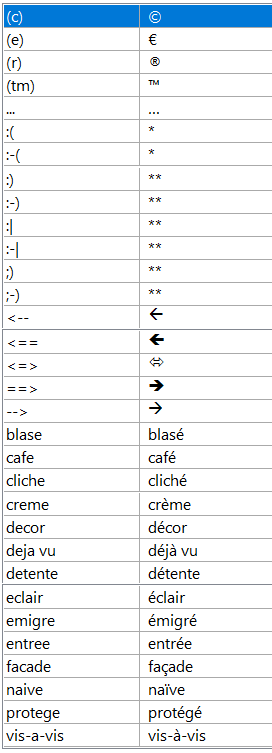
I decided to keep that box ticked (checked) and delete most of the strings it was changing. These are the ones I kept:

MS Word AutoCorrect Items

Questions and suggestions for future topics are welcome in the comments below.

Links to Previous Word Tips

  • Tip 1: A Matter of Style
    About heading styles.
  • Tip 2: Make Your Novel a Trampoline
    How to jump swiftly and gracefully between chapters.
Categories
The writing process

Word Tip 2: Make Your Novel a Trampoline

Microsoft Word Tips for Authors

Welcome to the next in a series of tips on using Microsoft Word, geared towards authors.
Most Word advice is rather complicated and full of things you’ll never need to know.
I shall do my best to keep it simple, because you’re not stupid… just busy.
Please note: 
– Not all versions of Word are the same, but most are near enough.
– There are different ways of doing the same thing. I shall demonstrate just one (or two).

Your novel becomes a trampoline when you’re editing. You need to be able to see its structure at a glance and quickly jump between chapters and sometimes sections of chapters.

This tip only works if you have defined heading paragraphs as shown in Tip 1.

Press Ctrl/F, which you probably use for searching in the novel.

The window that appears has three tabs: Headings, Pages and Results. Click on Headings. You’ll see all headings in the novel. If you’ve defined sub-headings, these will appear, too, and you can expand and collapse headings using the arrows, as you would for file names in Explorer.

I like to give my chapters names, even if these won’t remain in the final version, because the names show up in that pane on the left. And sometimes I separate a chapter into sections and give them names, too. Just so that I can see the novel’s structure at a glance.

Working with Word

How do you jump to a specific chapter or section in the novel?

Just click on it.

Questions and suggestions for future topics are welcome in the comments below.

Categories
The writing process

Word Tip 1: A Matter of Style

Microsoft Word Tips for Authors

Welcome to the first in a series of tips on using Microsoft Word, geared towards authors.
Most Word advice is rather complicated and full of things you’ll never need to know.
I shall do my best to keep it simple, because you’re not stupid… just busy.
Please note: 
– Not all versions of Word are the same, but most are near enough.
– There are different ways of doing the same thing. I shall demonstrate just one (or two).

You might think this one is a bit complex for a first tip. But I will be mentioning styles in most of the other tips, often along with alternatives, so I had to start by explaining what they are.

If you’ve never used styles, the chances are that everything you write uses the Normal style. The chances are that you just started writing using the font, font size, indentation and spacing that were defined for the Normal style. What did you do when asked to send your file in a different format? You selected the whole document (hopefully you know that Ctrl/A does that) and changed the font and size.

But what if you have headings (chapter headings or short story title)? Changing everything at once changes the headings, too. You might have to go through the novel, changing all the headings back to the way they were.

Instead, you can define the Heading 1 style for your chapter headings and keep the Normal style for the text. Here’s how:

  1. Click the arrow in the bottom right corner of Styles, which is in the Home tab. The Styles box appears.

    Styles Box in Word
    Styles Box
  2. Hover next to Heading 1 and click the arrow that appears.
  3. Choose Modify. The Modify Style window appears.
  4. Click Format (at the bottom) and choose Font.
  5. In the Font window, you can change Font style, Size and other details.
  6. Remember to click OK at the end.

Similarly, you can change the Normal style.

How do you define a chapter heading as Header 1? Here are two possible ways:

  • Click in the header and click Header 1 in Styles.
  • Click in the header and press Shift/Alt/

You can also use the Heading 2 style for sub-headings. Next week, I’ll show you why that might be useful when editing a novel.

Questions and suggestions for future topics are welcome in the comments below.

Categories
The writing process

Word Tips for Authors

Microsoft Word Tips for Authors

If you’re an author, you will probably use Word at some stage. Even if you don’t use it to create your novel or story or non-fiction book, you will probably use it when interacting with an editor.

There are plenty of Word tips out there, but these contain so much information that they look too complicated to authors who have limited time for technology and a limited number of things they want to do with Word.

And yet, there are features that would make their Word experience much more pleasant, if only they knew about them.

I’m going to try to make those features clearer by posting a tip once a week on Fridays, starting next week, 5th April. I’ll be using the hashtag #MSWordTipsForAuthors. See you back here.

If you have any questions or suggestions for topics, that’s what comments are for.

↓↓↓